
Blog size as of 13 March 2013: 8,476KB
Blog template: 72KB
Published: 878 posts
Draft: 70 posts
Comments: 218 posts
Technical notes: 20 posts
Blog hits: 125,965 ( Wednesday, 13 March 2013, 5:22 pm)
Showing posts with label technical note. Show all posts
Showing posts with label technical note. Show all posts
Wednesday, 13 March 2013

Thursday, 21 February 2013
Technical note: Malware
All Blogger websites are affected since 17 January 2013. Please ignore the header and footer banners. Please do not click on them or donate any money to the webpages in the header & footer. They are bogus. Blogger will remove them in due time.
Update from me, 22 Feb 2013:
Malware's gone now.
Update from Blogger, 23 Feb 2013:
They don't see the ads in this blog. So it must be my browser tools.
Update from me, 23 Feb 2013:
I removed the ads using Inspect Element but the ads came right back. So it must be a higher shell. I then removed 3 elements in my top menu bar - I removed Funmood, Similar Sites and Dashlane from my Google Chrome browser. Will try and see if the ads are gone now.
Update from me, 22 Feb 2013:
Malware's gone now.
Update from Blogger, 23 Feb 2013:
They don't see the ads in this blog. So it must be my browser tools.
Update from me, 23 Feb 2013:
I removed the ads using Inspect Element but the ads came right back. So it must be a higher shell. I then removed 3 elements in my top menu bar - I removed Funmood, Similar Sites and Dashlane from my Google Chrome browser. Will try and see if the ads are gone now.
Thursday, 7 February 2013
Technical Note: SoftOrbits
There are many photo editing programs here, some of which I have not tried. The ones I tried were not too bad. The SoftOrbits Photo Retoucher is useful. I have just downloaded Sketch Drawer today (tried yesterday but it had errors and would not launch.)
SoftOrbits
http://www.softorbits.com/actions/gaotd.html
SoftOrbits
http://www.softorbits.com/actions/gaotd.html
Wednesday, 30 January 2013
Technical Note: Sending large files
There are a few applications which are good and safe for sending large files. Some contributors had used them to send me big files. Many contributors were unaware of these applications. I have only used 3 of these applications - YouSendIt, sendspace and Dropbox. There are a few more which I have tried but I feel comfortable with sendspace, even though it is a bit too technical for some of you.
It is not economic to send large files via Gmail as it will clog and lock the email very fast. To be able to operate Gmail properly, one will need to delete all the email with attached large files.
List of applications which can be used to send large files:
http://similsite.com/websites-similar-to/?s=sendspace.com&ch=5378387101
It is not economic to send large files via Gmail as it will clog and lock the email very fast. To be able to operate Gmail properly, one will need to delete all the email with attached large files.
List of applications which can be used to send large files:
http://similsite.com/websites-similar-to/?s=sendspace.com&ch=5378387101
Sunday, 27 January 2013
Technical Note: Spotflux
Spotflux is a program that gets rid of ads, viruses, cookies, etc which would otherwise overload browsing, thus slowing down what you wish to see on your computer. With Spotflux, you should be able to browse the Internet a bit more freely, rapidly or smoothly. I have tried Spotflux tonight and it works fast and fine.
VPN is Virtual Private Network. Usually hospitals are given VPN for communicating between hospitals and health centres. Patient data are also sent via VPN so they travel without data loss. For those without VPN, Spotflux should do just the same.
Spotflux
http://www.spotflux.com/l/vpn-free/
VPN is Virtual Private Network. Usually hospitals are given VPN for communicating between hospitals and health centres. Patient data are also sent via VPN so they travel without data loss. For those without VPN, Spotflux should do just the same.
Spotflux
http://www.spotflux.com/l/vpn-free/
Technical Note: How to create a 3D book icon
This post gives the link to a tutorial for how to create a 3D vector book icon. I have not tried it yet. One of my books in the header (Biography of the Early Malay Doctors, image at top right and below) was probably created in this way. Vector programs give clear icons, whether big or small. The image re-sizing function will not affect image quality.
There are other programs which can be used to create 3D objects such as Aldus Freehand and Photoshop. These are "heavy" programs and too much hassle for the average person to use occasionally. They are however, a "must have" and "must know" for those who wish to become professional icon designers or graphic artists. Will be good as a hobby too.
GoMediaZine - How to create a 3D vector book icon
http://www.gomediazine.com/tutorials/create-a-3d-vector-book-icon
Vector Tutor Plus - How to create a 3D vector book icon
http://vector.tutsplus.com/tutorials/how-to-make-a-book-icon/
Photoshop - How to create a 3D book icon
http://naldzgraphics.net/tutorials/how-to-make-icons/
There are other programs which can be used to create 3D objects such as Aldus Freehand and Photoshop. These are "heavy" programs and too much hassle for the average person to use occasionally. They are however, a "must have" and "must know" for those who wish to become professional icon designers or graphic artists. Will be good as a hobby too.
GoMediaZine - How to create a 3D vector book icon
http://www.gomediazine.com/tutorials/create-a-3d-vector-book-icon
Vector Tutor Plus - How to create a 3D vector book icon
http://vector.tutsplus.com/tutorials/how-to-make-a-book-icon/
Photoshop - How to create a 3D book icon
http://naldzgraphics.net/tutorials/how-to-make-icons/
 |
| 2D cover image |
 |
| 3D book icon (PNG) - book lying flat |
 |
| 3D book icon (PNG) - book in upright position |
Technical Note: VideoJoiner
I have only downloaded and installed VideoJoiner. I haven't tried it yet. It looks simple enough.
Give Away of the Day
Blog http://blog.giveawayoftheday.com/
Download VideoJoiner (19 hours)

Give Away of the Day
Blog http://blog.giveawayoftheday.com/
Download VideoJoiner (19 hours)

Friday, 25 January 2013
Technical Note: Audio Record Wizard 6
This is an easy interface to record audio off existing website, including this website. Playback the audio for this website and start recording on the Audio Record Wizard 6. The recording is of higher quality and is clear. Set the recording at 100% level to obtain a better sound quality. There is no loop function on this recorder-player.
16 hours countdown to download:
http://www.giveawayoftheday.com/nowsmart-audio-record-wizard/
16 hours countdown to download:
http://www.giveawayoftheday.com/nowsmart-audio-record-wizard/
 |
| Screenshot of Audio Record Wizard 6 (playback of Makan Sireh mp3) |
 |
| Screenshot of mp3 recording of Selawat from YouTube http://www.youtube.com/watch?v=_kwdtut7TN8 http://www.youtube.com/watch?v=EP2yEO08w4s |
Tuesday, 22 January 2013
Technical Note: Flash Satay
This is a technical note on embedding flash movies in web pages. I'm looking for how to properly embed Carousel in my present web pages, and yet make it slim as it already carries loads of images.
Flash Satay
http://www.alistapart.com/articles/flashsatay
Google search for embedding flash
https://www.google.com/search?q=embedding+flash
Flash Satay
http://www.alistapart.com/articles/flashsatay
Google search for embedding flash
https://www.google.com/search?q=embedding+flash
Thursday, 3 January 2013
Technical Note - Photo Retouch
Portrait editing is a desirous skill. There are many software that can do this. However, a good simple software I'm learning tonight is the Retouch Pilot.
http://www.giveawayoftheday.com/retouch-pilot
http://www.facebook.com/giveawayotday
It can do a lot of things automatically and I think even a novice can learn this skill. The tools are powerful in this program. I have never seen anything like this software. Download it and install tonight while it is still free.
http://www.giveawayoftheday.com/retouch-pilot
http://www.facebook.com/giveawayotday
It can do a lot of things automatically and I think even a novice can learn this skill. The tools are powerful in this program. I have never seen anything like this software. Download it and install tonight while it is still free.
 | |||||||||||
Available tools - erase scratch marks, tear edges, white uneven bkgr, patch
|


Monday, 31 December 2012
Technical Note - Wikipedia & Wikimedia Commons Image Guidelines
This is the Wikipedia & Wikimedia Commons Image Guidelines. It is good for amateur photographers.
http://commons.wikimedia.org/wiki/Commons:Image_guidelines
Friday, 21 December 2012
Technical Note: Adjust horizontal misalignment
I had used Ashampoo Photo Commander 10 to align some images (maps and charts) that appeared tilted. It can be downloaded and used for trial. It will disappear from the computer at the end of the trial period. I had to re-download the software to create the images for this post.
This software is fast and displays all folders. When a particular folder is clicked, all the photos in that folder will be displayed at the bottom right panel.
Click on a distorted image to load it.
Clicking "Quick-Fix" opens another menu bar that has the rotate icon. Clicking the rotate icon will make the grid appear along with a message box that tells what to do next. The photo also appears in an inset at right.
Click on the distorted image and hold to rotate the image to align it horizontally or vertically. Then save when done.


Ashampoo Photo Commander 10:


 |
| How to align image |
Thursday, 20 December 2012
Technical Note: Photo editing
I spend a lot of time on photo editing. There is a big difference between images and text reproduction for printing books. Newspaper text when scanned at 600 dpi will still not print clearly for books. Portraits and photos scanned at 600 dpi turn up sufficiently good in printed books. The text-based images have to be edited separately from the portraits. Photos have to be edited in many ways before they will be good for printing in books. Sometimes photos are too dark and making them "light" destroys even the figures in the photos. Sometimes an artificial background needed to be created as the original background was too dark or of various tones. Sometimes images taken off printed pages are pixelated and beyond what I can manage to salvage for use in my books.
There are many useful tools or software but they have to be tried to see how they can improve photos or images. Portraits are the hardest objects in photo editing.
Here are some tools for photo editing:
http://softwaretopic.informer.com/photo-alignment-software-download/
http://www.imageskill.com/magicdenoiser/magicdenoiser.html
http://www.imageskill.com/magicenhancer/magicenhancer.html
There are many useful tools or software but they have to be tried to see how they can improve photos or images. Portraits are the hardest objects in photo editing.
Here are some tools for photo editing:
http://softwaretopic.informer.com/photo-alignment-software-download/
http://www.imageskill.com/magicdenoiser/magicdenoiser.html
http://www.imageskill.com/magicenhancer/magicenhancer.html
Technical Note: Portraits
Portraits came in many sizes, shades and textures. It was difficult trying to make all the portraits approximately the same size. I didn't have the right tool to work with but I remembered the magic ratio (1.618) that was used by ancient Arabs and Persians when they designed diagrams of the human face. Leonardo da Vinci also used the same ratio in his paintings. I also taught my students such ratio when I covered history of medicine.
Here is one website that can assist with portraits.
http://travel.state.gov/_res/flash/cropper/FIG_cropper.html#
It is easy to use and the portraits are cropped online (on the fly). However, it can only work with certain portrait sizes and requires a minimum of 600 x 600 pixels to work. So it won't work with small photos.
It will also not work if the height of the photo is not over the edge of the frame at the top. It will give an error message.
This online tool gives almost a square image but it is good for setting faces of the same size.
I tried working on some of the portraits.

Here is one website that can assist with portraits.
http://travel.state.gov/_res/flash/cropper/FIG_cropper.html#
It is easy to use and the portraits are cropped online (on the fly). However, it can only work with certain portrait sizes and requires a minimum of 600 x 600 pixels to work. So it won't work with small photos.
It will also not work if the height of the photo is not over the edge of the frame at the top. It will give an error message.
This online tool gives almost a square image but it is good for setting faces of the same size.
I tried working on some of the portraits.

 |
| Re-sizing portrait to a preset fixed size or alignment grid |
Sunday, 16 December 2012
Kampung Baru
When I interviewed Coco (Tan Sri Dr Abdul Majid bin Ismail) in May 2007, he said he was from Kg Baru. His parents also lived in Kg Baru. It was confusing trying to understand his description of Kg Baru and what I understood about Kg Baru from a child's perspective. But I swallowed whole whatever he said about Kg Baru. But a doubt always remained about what was Kg Baru.
When I wrote Tan Sri Salma's biography, she had a clinic in Kg Baru, that remained opened even during the violent days that followed the 13 May 1969 incidences. My doubt about Kg Baru grew bigger. I promised myself that I would one day take a walk to Kg Baru and explore it on foot.
On 15 December 2012, after having asam boi cold drink from the roadside hawker near the food court in front of Hospital Bersalin KL, my husband and I decided to visit Kg Baru on foot. We walked under the hot sun. It was probably 12 noon. We explored the area at Jalan Daud and reached the Kg Baru Mosque soon after azan Zohor.
Childhood memories of Kg Baru
I have heard about Kg Baru as a child. My father's ancestors lived in Kg Baru. His maternal grandfather (Mat Amin Pasar/Mat Amim Chow Kit) lived at 1 Jalan Stoner in Kg Baru. A Kg Baru man told us Jalan Stoner is now Jalan Puteri. My father often brought us to see his relatives in Kg Baru - the families of his mother's eldest brother and her sisters. Whenever we came to Kuala Lumpur, my father would try to visit his relatives in Kg Baru. At Kg Baru, we would have lunch Malay style, prepared and cooked by my father's aunts and uncle. Kg Baru lunch was simply delicious though simple.
What is Kg Baru?
Coco mentioned the nature of Kg Baru, and the sub-villages inside it. Kg Baru was an early Malay village, not the ordinary small Malay village, but a Malay village that was artificially created in the heart of Kuala Lumpur. And the villagers were transplanted from various parts of Malacca. So Kg Baru was practically a Malay village and about transplanted Malacca people.
Where is Kg Baru?
I didn't know too where it was till I visited the place with my husband. He was at one time a student of UKM and had lived at the students' hostel in Kuala Lumpur. For 4 years, he studied in KL, which became his second home. He walked from the Putra bus terminal to his UKM campus. He was on foot mostly and had explored Kg Baru on foot some 13-15 years ago. I trusted his memory and we walked into Kg Baru to have a look around and see Kg Baru for ourselves.
Kg Baru is on the other side of the Kg Baru stadium and the food court. It is across from the Pediatric Institute of Hospital Kuala Lumpur (HKL). It stretches from HKL right up to the Petronas Twin Towers and KLCC. It includes the major roads in KL such as Jalan Sultan Ismail, Jalan Dang Wangi and Jalan Daud. It is an old area of Kuala Lumpur, with tiny old Malay houses (very few of them left today) and a lot of small Malay businesses, which is typical of Malay dominated businesses as in Kota Bharu, Kelantan. There is Kg Baru Mosque tucked at one corner of the congested area.
Kg Baru is divided into sub-villages and each has a distinct name to indicate its status. The map at a corner and road junction shows the divisions and names of the sub-villages inside Kg Baru. There is an arch that says Kampung Baru. The Sultan Sulaiman Club is also in Kg Baru.
Coco had mentioned the above sub-villages within Kg Baru but there is no Kg Chendana on the Kg Baru map which I photographed. I'm unsure whether Kg Pindah today is the former Kg Hanyut that Coco mentioned to me. I'm unsure whether Kg Atas A is the one Coco referred to as "near Prince's Road" (Jalan Raja Muda Abdul Aziz?). The Kelab Sultan Sulaiman (Sultan Sulaiman Club) is within Kg Periok. Masjid Jamek Kg Baru is within Kg Masjid.


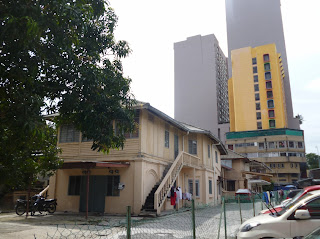
Photo editing - photo alignment:
http://photo.stackexchange.com//software-for-auto-alignment-of-photographs
When I wrote Tan Sri Salma's biography, she had a clinic in Kg Baru, that remained opened even during the violent days that followed the 13 May 1969 incidences. My doubt about Kg Baru grew bigger. I promised myself that I would one day take a walk to Kg Baru and explore it on foot.
On 15 December 2012, after having asam boi cold drink from the roadside hawker near the food court in front of Hospital Bersalin KL, my husband and I decided to visit Kg Baru on foot. We walked under the hot sun. It was probably 12 noon. We explored the area at Jalan Daud and reached the Kg Baru Mosque soon after azan Zohor.
Childhood memories of Kg Baru
I have heard about Kg Baru as a child. My father's ancestors lived in Kg Baru. His maternal grandfather (Mat Amin Pasar/Mat Amim Chow Kit) lived at 1 Jalan Stoner in Kg Baru. A Kg Baru man told us Jalan Stoner is now Jalan Puteri. My father often brought us to see his relatives in Kg Baru - the families of his mother's eldest brother and her sisters. Whenever we came to Kuala Lumpur, my father would try to visit his relatives in Kg Baru. At Kg Baru, we would have lunch Malay style, prepared and cooked by my father's aunts and uncle. Kg Baru lunch was simply delicious though simple.
What is Kg Baru?
Coco mentioned the nature of Kg Baru, and the sub-villages inside it. Kg Baru was an early Malay village, not the ordinary small Malay village, but a Malay village that was artificially created in the heart of Kuala Lumpur. And the villagers were transplanted from various parts of Malacca. So Kg Baru was practically a Malay village and about transplanted Malacca people.
Where is Kg Baru?
I didn't know too where it was till I visited the place with my husband. He was at one time a student of UKM and had lived at the students' hostel in Kuala Lumpur. For 4 years, he studied in KL, which became his second home. He walked from the Putra bus terminal to his UKM campus. He was on foot mostly and had explored Kg Baru on foot some 13-15 years ago. I trusted his memory and we walked into Kg Baru to have a look around and see Kg Baru for ourselves.
Kg Baru is on the other side of the Kg Baru stadium and the food court. It is across from the Pediatric Institute of Hospital Kuala Lumpur (HKL). It stretches from HKL right up to the Petronas Twin Towers and KLCC. It includes the major roads in KL such as Jalan Sultan Ismail, Jalan Dang Wangi and Jalan Daud. It is an old area of Kuala Lumpur, with tiny old Malay houses (very few of them left today) and a lot of small Malay businesses, which is typical of Malay dominated businesses as in Kota Bharu, Kelantan. There is Kg Baru Mosque tucked at one corner of the congested area.
Kg Baru is divided into sub-villages and each has a distinct name to indicate its status. The map at a corner and road junction shows the divisions and names of the sub-villages inside Kg Baru. There is an arch that says Kampung Baru. The Sultan Sulaiman Club is also in Kg Baru.
In the heart of Kuala Lumpur, a new Malay village called Kampong Baru was opened for relocation of Malays from Malacca to Kuala Lumpur. Initially, it had less than 600 houses and a population of approximately 3,000 people[1]. People traveled either by rickshaw (becha or beca) or bullock cart (kereta lembu).
[1] There were a number of sub-villages within Kampong Baru, namely, Kampong Ujong Pasir, Kampong Periok (near Sulaiman Club), Kampong Masjid (near the mosque), Kampong Baru Atas (near Prince’s Road), Kampong Paya, Kampong Hanyut and Kampong Chendana. Roads were not covered with bitumen in Kampong Baru, part of Batu Road and Jalan Tuanku Abdul Rahman. - Biography of the Early Malay Doctors 1900-1957 Malaya and Singapore (2012).
Coco had mentioned the above sub-villages within Kg Baru but there is no Kg Chendana on the Kg Baru map which I photographed. I'm unsure whether Kg Pindah today is the former Kg Hanyut that Coco mentioned to me. I'm unsure whether Kg Atas A is the one Coco referred to as "near Prince's Road" (Jalan Raja Muda Abdul Aziz?). The Kelab Sultan Sulaiman (Sultan Sulaiman Club) is within Kg Periok. Masjid Jamek Kg Baru is within Kg Masjid.


 |
| These photos were taken with the map mounted quite high. Many photos were slightly rotated. I had to use a software to realign the images above. |


http://photo.stackexchange.com//software-for-auto-alignment-of-photographs
Tuesday, 27 November 2012
Technical Note - Image Resolution and Formats
This post is about images for the 2 books. I will let you know the difficulties I was faced with while working with some of the images and how I tackled them so that they were of print-quality as required by the publisher. I will only cover some of the photos which I edited.
Image Resolution and Formats
There are 47 MB of (JPEG) images for the first book (Research on the Early Malay Doctors).
There was 1.30 GB of images recorded in 3 formats (JPEG, PNG, TIFF) which I submitted for the second book (Biography of the Early Malay Doctors).
Research on the Early Malay Doctors
Photo set 1: King Edward VII School, Taiping
ACQUISITION: The photos for King Edward VII School, Taiping were taken off from many school magazines.
PROBLEMS: The images were of low quality. Some images were too dark and the structures were not visible. They were B/W and coloured images.
RESOLUTION: I cut out the images from the magazine pages and stuck them in PowerPoint. In PowerPoint, I was able to adjust lighting and contrast. I then saved the images from PowerPoint as separate free images in JPEG format.
PUBLISHING: All the images were published as B/W images.
 |
| JPEG images of King Edward VII School, Taiping after editing. |
Photo set 2: Hospital Melaka
ACQUISITION: The photos for Hospital Melaka were obtained from Facebook.
PROBLEMS: Even though the images looked clear in Facebook, they were of low resolution for printing.
RESOLUTION: I didn't have a program to increase the photo resolution. What I did was to arrange the images as several series of smaller images than those I had received in Facebook.
PUBLISHING: The photos were printed as B/W images and were smaller than those in Facebook. Since the photos were printed smaller, the resolution turned up alright.
 |
| Properties of images in Facebook |
 |
| JPEG images of Hospital Melaka from Facebook. |
Biography of the Early Malay Doctors
Photo set 1: Dr Abbas
ACQUISITION: Several images were submitted by the family members. Some were coloured photos.
PROBLEMS: Many good old photos were of low resolution. One photo had plenty of empty white spaces. One photo was very dark with tiny people figures.
RESOLUTION: Each photo had to be tackled individually. The one with lots of white spaces was easy but the kain sampin worn by Dr Abbas had to be re-drawn and re-shaded as the lines appeared broken.
PUBLISHING: The photos came out alright but they are clearer in the ebook compared to printed books.
 |
| Edited images for Dr Abbas's biography. |
Photo set 2: Dr HS Moonshi portrait
ACQUISITION: Image was submitted as a JPEG B/W image.
PROBLEMS: The image had plenty of cracked lines.
RESOLUTION: I edited the photo in Zoner Photo Studio 14. I first upgraded the resolution to a maximum of 600 dpi and saved the images as 2 separate images. I then worked on one of the images to attempt to minimise or clear up all the cracked lines. The badges had to be outlined so they stood clear against the background. Some of the stripes on the jacket had to be re-drawn and the colours matched. The beard had to be touched up.
PUBLISHING: The portrait is alright but it does look "soft" to me. I don't think sharpening the image will help.
 |
| Original B/W image submitted at 200 dpi. |
 |
| Properties of the upgraded image (600 dpi) before editing. |
 |
| Portraits of Dr HS Moonshi - edited above, unedited below. |
Photo set 3: Sri Kenangan
ACQUISITION: Image was submitted as a 2.45 MB JPEG B/W image.
PROBLEMS: This was a large image but of low resolution. There were plenty of white spaces in various places of the old photo.
RESOLUTION: I edited the image in Zoner Photo Studio 14 (obtained free from Give Away of the Day). I filled the empty white spaces with background colour density, working under 250X image blowup. For lines to fill the missing wooden roof facade, I had to draw in "wooden panels" based on what I know a Malay house looks like. I then coloured in the "wooden panels" to match the roof "bits" in the image. The thatched roof was also done the same way by picking up colour density and patching white empty spaces. The rattan lines had to be re-drawn to match the other rattan pieces elsewhere in the images. I also patched some of the clothes and cleaned up some of the greyed-in spot on the white jackets. I outlined some of the people to make them stand out against the dark background. I outlined some of the shoes so they appeared clearer in the final image.
PUBLISHING: The photo turns up alright. I don't know how to make it a bit darker without losing resolution for the people figures.
 |
| Sri Kenangan images - before editing at right, and after editing at left. |
 |
| Properties of submitted image. No resolution was recorded. |
 |
| Resolution of submitted image based on a replicate made in Zoner Photo Studio 14. |
 |
| Final improved resolution of Sri Kenangan image after editing. |
Photo set 4: Wanita UMNO
ACQUISITION: Images were captured off a framed photo on the wall of a home gallery.
PROBLEMS: The precious images were unfortunately dark and fuzzy. The fireball from the flash spoiled the images.
RESOLUTION: I first removed the fireball in PowerPoint by layering with a dark rectangle. I then free-cut the figures and pasted on a white slide. I then adjusted contrast and sharpness. I then used Zoner Photo Studio 14 to turn the dark figures to brighter tones. I saved 2 bright tones. I cleared the fuzzy areas (noise) in the background by using a wavy fill design. I cleared some of the little blur spots on the clothes of the ladies by patching with similar tone and density using a brush function.
PUBLISHING: (no feedback yet)
 |
| Wanita UMNO images |
Other software available for increasing image resolution:
http://en.softonic.com/s/image-resolution-increaser
Monday, 6 August 2012
Technical Note - Photo Resolution
How to enhance photos for printing (eg checking and increasing image resolution).
For things to do with resolution, especially for photos, there is one choice which is a free program. This is the Zoner Photo Studio.
Zoner Photo Studio
http://www.zoner.com/ww-en/photo-editor-viewer-manager
For things to do with resolution, especially for photos, there is one choice which is a free program. This is the Zoner Photo Studio.
Zoner Photo Studio
http://www.zoner.com/ww-en/photo-editor-viewer-manager
- Zoner Photo Studio has 2 panes, the View pane and the Editor pane.
- Click the View tab to view images/photos.
- Click the Editor tab to do editing.
- There are many functions in Editor, one is for checking size and resolution.
- To check the size or resolution, click Editor tab.
- Click Edit, then select Resize. Set the desired resolution in dots per inch (dpi).
- For print purposes, set the resolution to 300 dpi. Click OK.
- Then click File, select Save. Now the file is ready to meet printing needs.
- Note: Archives may require higher resolutions, eg 400 dpi or 600 dpi.
 |
| This is an image (or photo). Double-click the image to view it in Zoner Photo Studio. |
 |
| This is the image in Zoner Photo Studio. This is the View pane or window. Then click the Editor tab. |
 |
| This is the image in Zoner Photo Studio, but in the Editor pane or window. Click Edit, select Resize. |
 |
| This is the Resize control box for the image. The resolution of the image is presently 96 dpi. Increase the resolution using the upper small pyramid icon till it displays 300. Then click OK. Now the image resolution is 300 dpi, and the photo size will re-adjust to meet that higher resolution. Now view the image (click View tab) and click the magnify (+) button to see the image at higher resolution. |
Technical note - compressed files
How to create compressed files and how to open them.
There are many programs for creating compressed files but I only used 2 such programs, one is WinZip and the other jZip. Both are easy to learn and use. They are useful when you want to send many files as a big file (called archive, packed files or stack).
WinZip
http://download.cnet.com/WinZip/3000-2250_4-10003164.html
jZip
http://www.jzip.com/
Will edit the instructions later ...
There are many programs for creating compressed files but I only used 2 such programs, one is WinZip and the other jZip. Both are easy to learn and use. They are useful when you want to send many files as a big file (called archive, packed files or stack).
WinZip
http://download.cnet.com/WinZip/3000-2250_4-10003164.html
- Follow the instructions online
- The program may still be/may not be free now. Use it if it is free or locate and download the free version.
- Download and install. Just double-click whatever you downloaded and it will self-install. Follow the instructions on screen.
- To create a zip file, first create an empty folder. Drag some of your files into the folder (not exceeding 200MB total size). Then right-click on the folder. In the menu, select Apply to archive.... This will create a zip file of that folder. By zip file, it means all the contents of that folder are now packed as a single file, and with the same name. Rename and save the zip file.
- You can then send the zip file to sendspace.
- Gmail does not allow you to send zip files.
jZip
http://www.jzip.com/
- jZip is fast but quite tricky to use. The zip action takes place so fast that you wonder whether your files have been zipped or not.
- If you think you want to try jZip, then download and install.
- To create a zip file, first create an empty folder and name it. Drag some files into that folder. Then right-click on the folder and select jZip from the menu, and Add to jZip in the adjacent selection panel. Two things will pop up, one is the Add message box, the other is the jZip window.
- To create a new zip file, click New. Your compressed file will show up in the jZip window. You will be able to see the icon and name of your compressed file.
- If you wish to add more files to the same jZip window, click Insert. All the files are viewable in the jZip window. That's it.
- To open a zip file using jZip, click View and select the file you wish to open. That's it.
Will edit the instructions later ...
Technical Note - Sending large files
How to send large files (eg digital photos; single file vs archive or zip) - PowerPoint (PPT) 5Aug2012
sendspace
How I have used sendspace:
There are 2 programs for sending large files, one is YouSendIt and the other is sendspace. Both are good but have certain limitations. They are useful for sending photos and manuscripts.
YouSendIt
- Maximum file size: 20MB
- Limitation: cannot send zip file
- This program is free
- I have used YouSendIt since 2009.
- YouSendIt is for instant download. It doesn't keep the files on the server for very long.
- Start with this program first and if this program is limiting, try sendspace next.
- Always start by sending a file to yourself. If it works, it will work for others.
sendspace
- Maximum file size: 200MB (sometimes 300MB)
- Limitation: cannot exceed total file limit size (1 GB)
- This program is free
- Good point: can send compressed files (zip files)
- Good point: files remain on the sendspace server for approx. 1 month, with constant reminder of time left (1 week) before files will be automatically deleted.
- Always start by sending a file to yourself. If it works, it will work for others.
How I have used sendspace:
- In 2012, when I wanted to send the manuscript to Xlibris, I also had 400+ photos to send. I could not use YouSendIt as it would not allow me to send that many files and such a huge volume of contents. I wanted to send compressed files (zip files) to save time. Xlibris suggested me to use sendspace to send my files to my editors. So I learned how to use sendspace (trial and error). When that worked ok, I then sent my files using sendspace. The files were downloaded by the IT Dept at Xlibris and then distributed to 2 depts - copy-editors and production team.
- Sendspace became very essential for my work. Else I would have to spend a lot of money to send my manuscript and photos by courier to Xlibris for printing my books. I didn't have to buy tons of pendrives or any extra external harddisk. Learning how to use sendspace helped me a lot.
- I have prepared a PowerPoint (PPT) for how to use sendspace but give it a try first. Let me know if you get stuck and I will email the PPT to help you out. The PPT is gratis.
- You can send individual files or zip them first and then upload to sendspace. I will write a technical note for how to create compressed files.
- Read the sendspace instructions online carefully and follow strictly.
- Just a note of warning: there is an advertisement button at the sendspace website. Do not click on that button. If you accidentally clicked on it, it will ask for your hp#. Do not fill in. Leave the application and go back (track back). You will lose about RM24 of you entered your hp# and find out later that it is a scam.
Sunday, 5 August 2012
Technical Note - Topics Covered
I will now guide readers wrt the technicalities involved behind the scene for The Early Malay Doctors. It may be useful/useless for some. Some of you maybe able to cope/not be able to cope with the technicalities. Anyone can learn.
Here are some tentative topics which I plan to write about/explain:
Here are some tentative topics which I plan to write about/explain:
- How to send large files (eg digital photos; single file vs archive or zip) - PowerPoint (PPT) 5Aug2012
- How to create compressed files.
- How to enhance photos for printing (eg checking and increasing image resolution).
- How to prepare a composite digital portrait from existing old photos - KIV
- How to touch up old photos (torn or missing bits) - KIV
- What to do with very small images - KIV
- How to capture individual faces from a group photo - KIV
- How to do a line-up of portraits for a person (facial profiling) and determine a person's age by approximation. - KIV
- How to prepare maps - KIV
- How to check what day it was for any given date.
- How to double-check a newspaper publication.
Subscribe to:
Posts (Atom)


